Private Docs
This guide shows you how to make a Docs site private and use access groups to choose who can view it. You can set this up in the dashboard and editor, or in your scalar.config.json.
Make sure you have created a Scalar Account & are logged in (see create account guide)
Create your first access group
Access groups decide who outside your team can view a private site. Creating one needs the Pro plan or above.
In the dashboard, open Settings and go to Configuration → Access Groups. Click New Access Group, give it a name and a slug, then click Create Access Group.
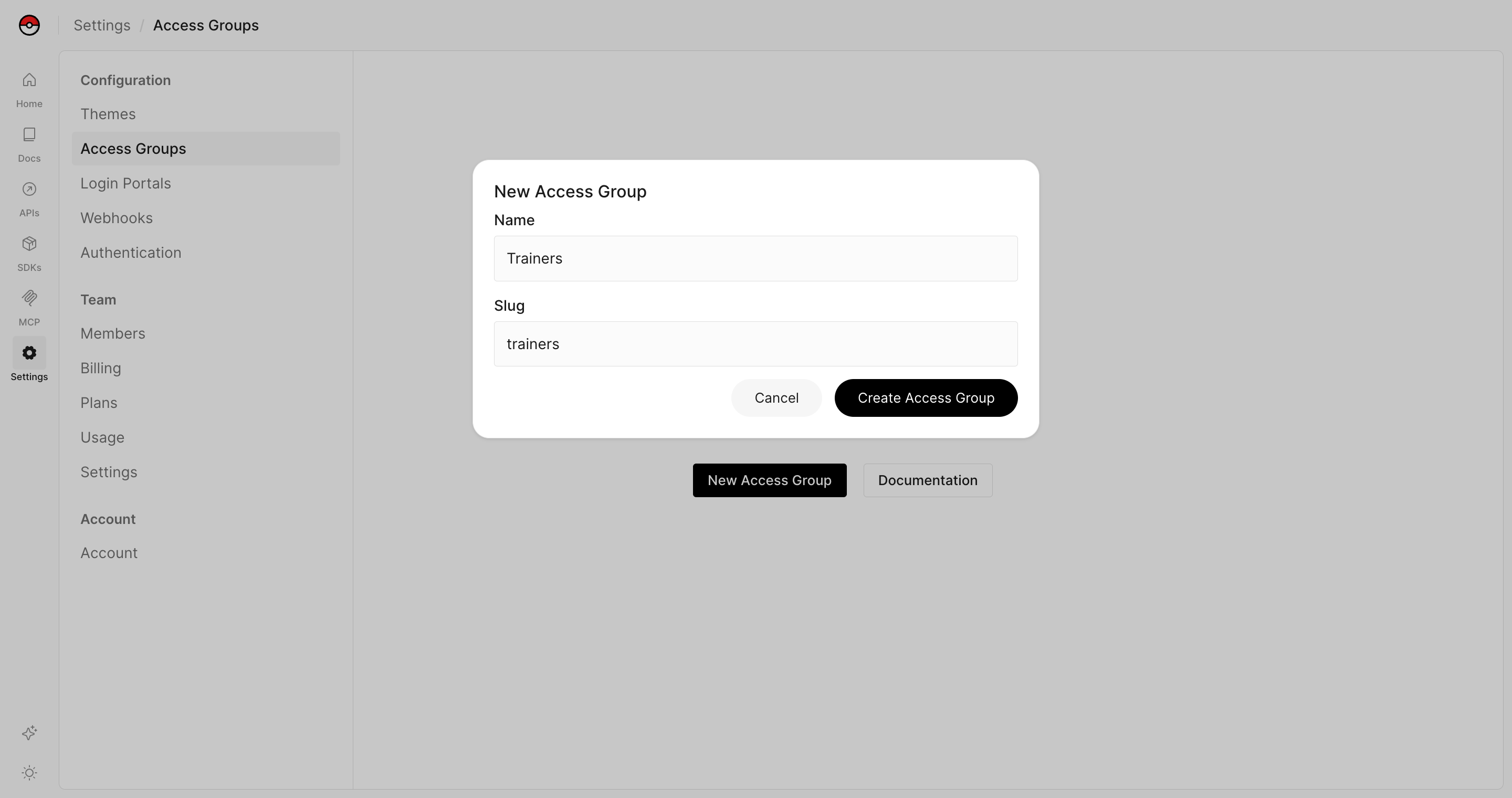
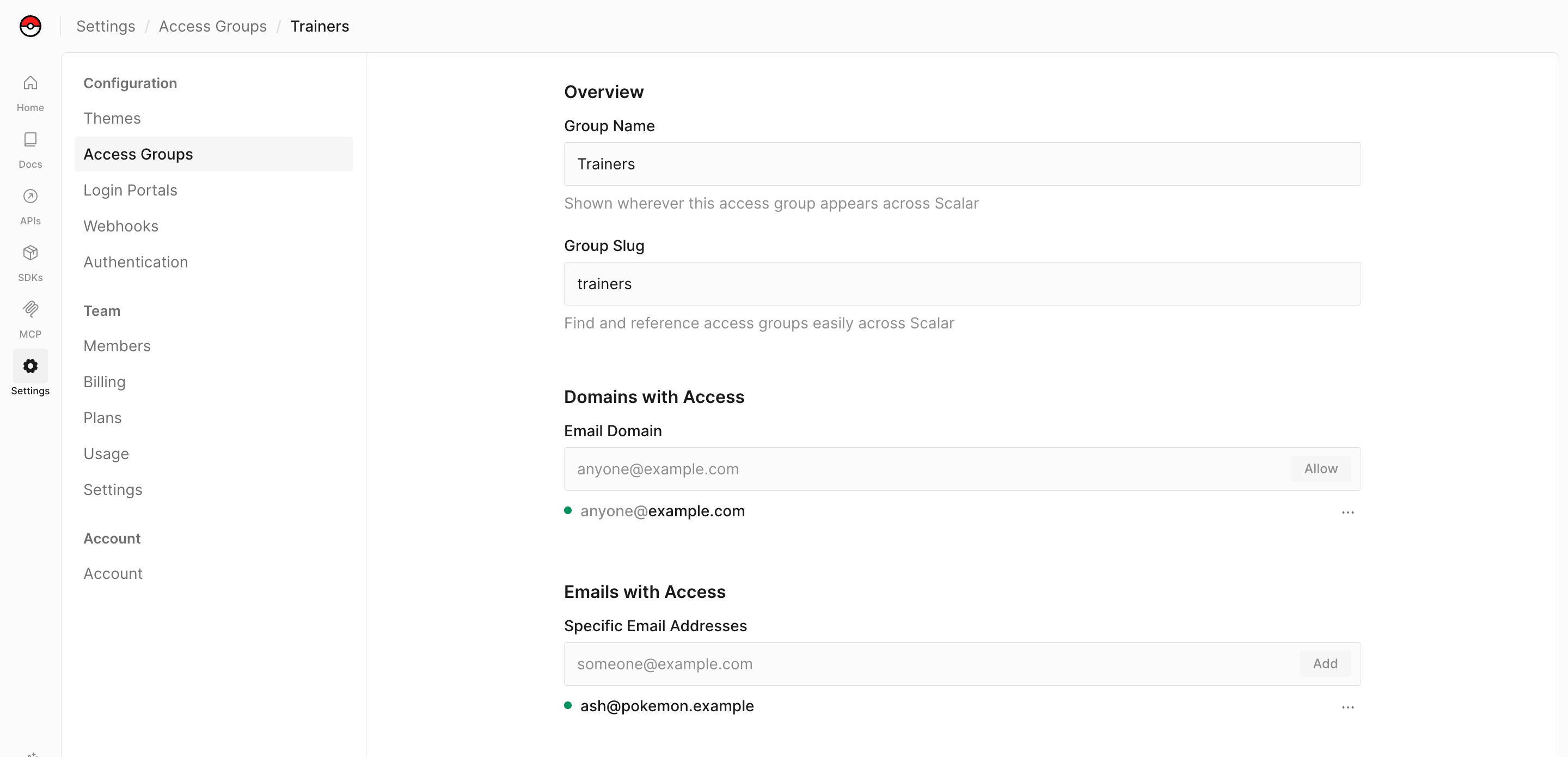
Now that you have an access group, you can allow a whole email domain, specific email addresses, or both.
Allow an email domain
Under Email Domain, type a domain like example.com and click Allow. Anyone with an address at that domain can sign in.
Allow specific email addresses
Under Specific Email Addresses, type an email address and click Add.
Make your docs private
Open your Docs project in the editor and go to Settings → Privacy. Under Access control:
- Turn on Private site. Visitors now have to sign in, and members of your team always have access.
- Optionally, pick a Login portal to brand the sign-in page. Without one, visitors see the default sign-in page.
- Under Access groups, add the groups that should be able to view the site.
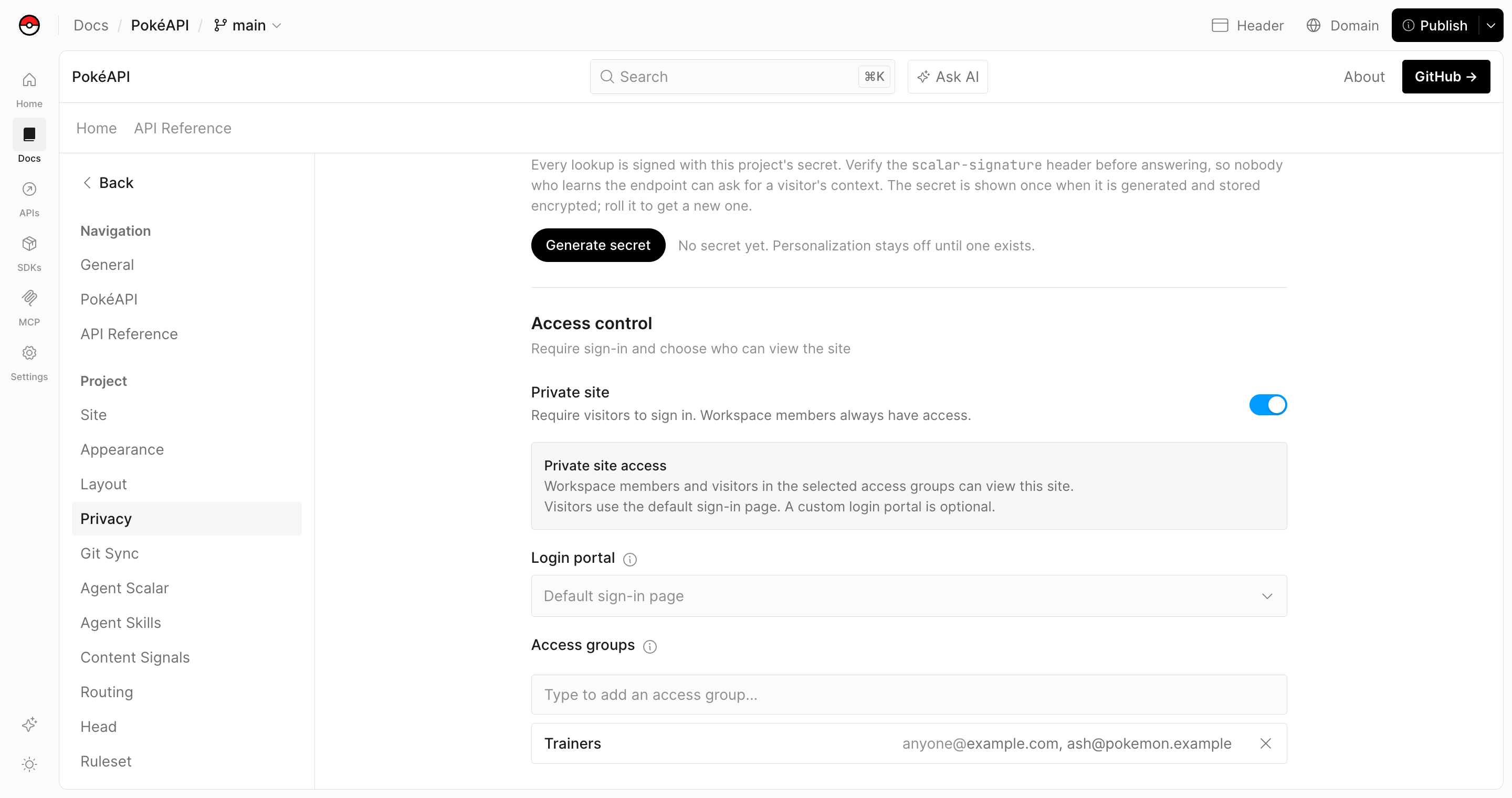
Save and publish your changes for them to take effect. If you delete an access group later, its members lose access immediately.
Configure in scalar.config.json
The Private Docs toggle, access groups and login portal are also stored in your scalar.config.json, so you can set them in your repository:
{
  "siteConfig": {
    "isPrivate": true,
    "accessGroups": ["partners"]
  }
}
See Access Control for every property.
What did you think of this content?